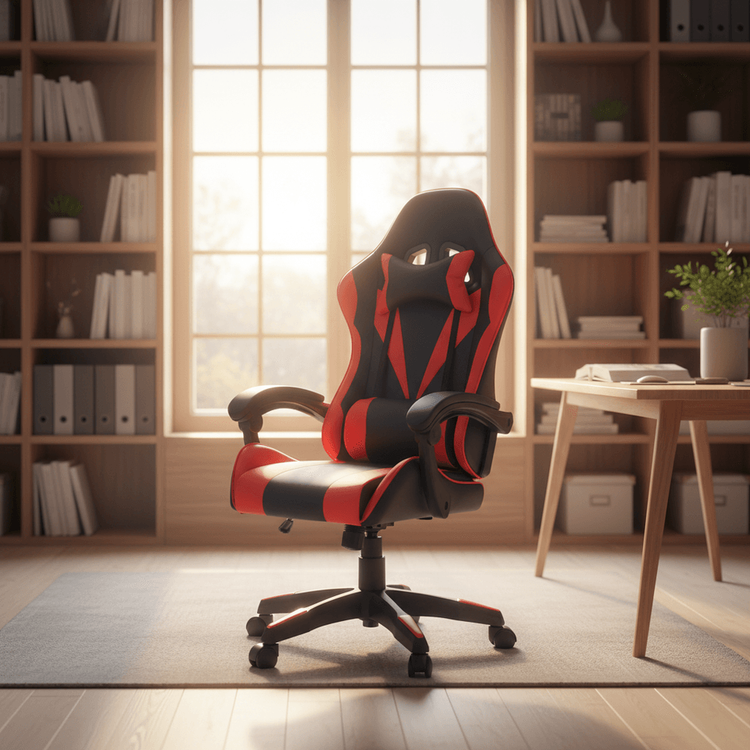
How to Make a 3D Leather Office Chair
To create a 3D leather office chair, you can refer to the following steps, which require the use of 3D modeling software such as 3D Max:

1. Draw the Basic Seat Cushion Model Launch 3D Max software and go to the 'Create' command panel. Select 'Extended Primitives' under 'Geometry' and click on the 'Chamfer Box' tool. Drag the mouse in the top view to draw the initial shape of the seat cushion. Adjust parameters such as length, width, height, and fillet radius to match ergonomic dimensions. The edges of the seat cushion should have appropriate fillets to simulate the effect of real leather wrapping.
2. Duplicate and Adjust the Seat Cushion Structure Hold down the 'Shift' key on the keyboard and drag the drawn seat cushion to create a copy and move it to an appropriate position (such as the backrest or armrest area). Modify the parameters of the copy according to design requirements. For example, the backrest seat cushion may need an increased tilt angle, while the armrest seat cushion may need a shorter length. Further refine the model using the 'Edit Poly' tool in the 'Modify' panel, such as adding segment lines to enhance subsequent material deformation effects.
3. Build the Chair Frame and Support Structure Switch to the 'Shapes' command panel and select the 'Rectangle' tool to draw the outline of the chair frame in the front and left views. Hold down the 'Shift' key to copy the rectangle and adjust its position to form support structures such as chair legs and crossbeams. Use the 'Extrude' modifier to convert the 2D shapes into 3D solids. Adjust the extrusion height and segment count to ensure structural stability. For metal components (such as the connection points of the chair legs), model them separately and optimize the topology.
4. Configure Leather and Metal Materials
- Leather Material: Open the material editor and select the first sample sphere. Click on the small square next to 'Diffuse' and create a new 'Cells' map in the 'Material/Map Browser'. Adjust parameters such as cell size and dispersion to simulate leather texture. Drag the 'Cells' map to the 'Bump' channel and make a copy to enhance the surface realism. Finally, assign the material to the seat cushion model.
- Metal Material: Select the second sample sphere and set the specular level (80-100) and glossiness (60-80) in the 'Specular Highlights' section to simulate metal reflection effects. In the 'Maps' rollout, add a bitmap map (such as a stainless steel or aluminum alloy image) to the 'Reflection' channel and adjust the map coordinates to prevent distortion. Assign the metal material to the chair frame model.
5. Scene Setup and Final Rendering Add a background (such as a solid color or an office scene image) and omni lights in the environment. Adjust the light intensity and shadow type (such as 'Shadow Map'). Generate an image by clicking the 'Quick Render' button and check the material details and lighting effects. For higher quality, enable global illumination (GI) or use renderers like V-Ray for optimization.
Key Considerations: Keep the model's face count reasonable during modeling to avoid rendering lag caused by excessive subdivision. Adjust material parameters repeatedly according to the actual effect. Before final rendering, it is recommended to save views from different angles for later modifications.