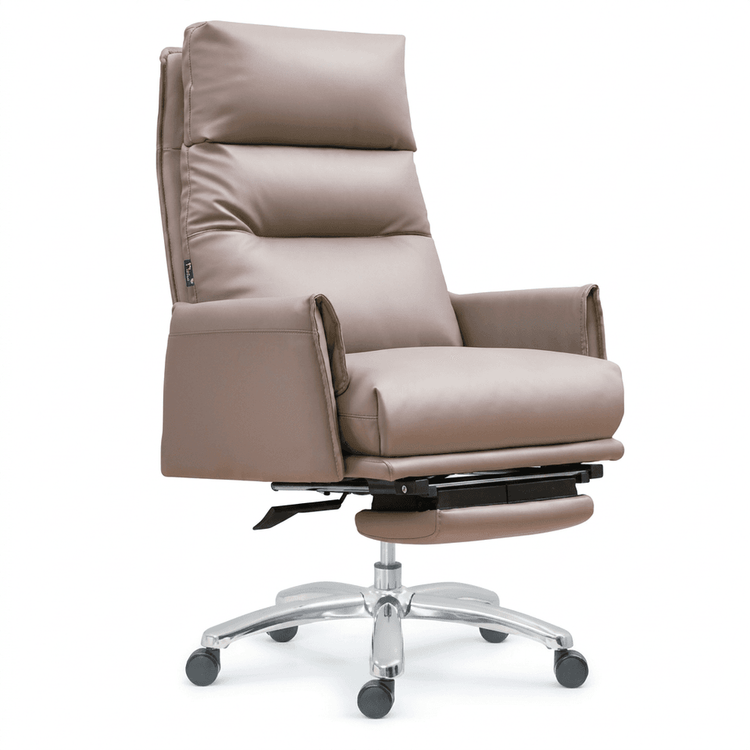
UG Office Chair Drawing Method
The drawing method of office chairs in UG can be designed by referring to the modeling ideas of benches and petal-shaped chairs. Here are the specific steps:

Basic Framework Construction
Based on the method of modeling a bench in UG 10.0, first open the software and create a new blank model file, saving it with a specific name. Create a cuboid as the main frame of the chair through 'Insert - Design Features', designate the coordinate origin as the reference point, and set the dimensions to 100x100x1000 (adjustable according to the actual proportions of the office chair). Use the 'Associative Copy - Pattern Feature' function to copy the basic frame structure along the length of the chair, forming the preliminary outlines of the backrest and seat.
Seat and Backrest Detail Design
Use the 'Extrude' command to enter the sketch environment, draw a rectangle, mark the dimensions, and then set the extrusion limits (such as symmetric extrusion to a specific height). Merge the new solid with the frame using 'Boolean Union'. For the backrest part, use the extrude command again, draw a right-angled trapezoid sketch, add geometric constraints (such as perpendicular and parallel relationships), mark the dimensions, and then choose the 'Boolean Subtract' operation to retain an independent solid. Complete the symmetric design of the backrest using 'Mirror Feature'. Finally, use the 'Combine' command to integrate all solids into one whole.
Armrest and Leg Structure
Continue to use the extrude command, draw a square sketch on both sides of the chair body (the dimensions are set according to the width of the armrests), mark the dimensions, and then perform a Boolean union to generate the armrests. For the leg design, refer to the idea of the petal-shaped chair: first draw a trapezoidal sketch and extrude it into a solid. Use its edges to create cylinders as support legs. Draw straight lines between the legs and use the 'Pipe' command to generate connecting structures to enhance stability.
Decoration and Optimization
If you need to design petal-shaped decorations (such as on the edges of the backrest or seat), rotate a straight line to generate a喇叭-shaped (trumpet-shaped) sheet, thicken it into a solid, and then copy multiple petal units through circular patterns. Use the 'Curve Group' command to connect the sheets and stitch them into a complete solid. Round off the full fillets to make the transitions natural. Finally, hide the reference coordinate system, set the display mode to 'Shading', and adjust the material and lighting effects through the rendering function to enhance the realism of the model.
Key Considerations
During the modeling process, frequently use the 'Measure' tool to verify the dimensional proportions to ensure that each component conforms to ergonomics. For complex structures, it is recommended to model in layers and manage different components through the 'Layer' function for easy later modification. After completing the basic model, use the 'Analysis - Shape' function to check the surface continuity and optimize the detail design.