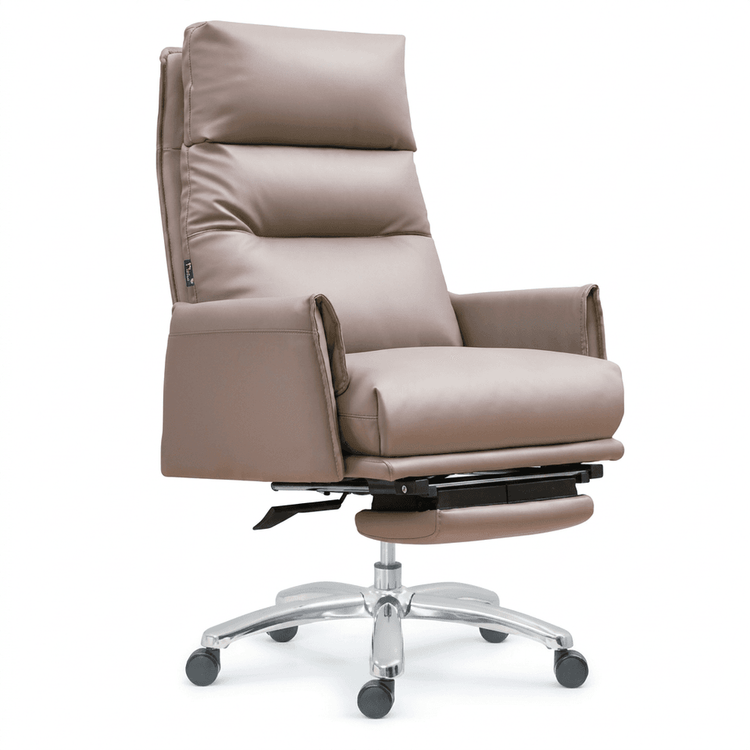
SW Office Chair Drawing Method
When drawing an office chair in SolidWorks, you can refer to the following steps and methods:

Overall Modeling Approach
Drawing an office chair in SolidWorks requires the comprehensive use of various basic modeling tools, such as 3D sketches, sweeps, reference plane creation, and extruded bosses. First, plan the structure of each part of the chair, then complete the modeling step by step in modules, and finally perform assembly or detail optimization.
Key Structure Drawing Methods
Chair Legs or Support Frames
If the chair legs are tubular structures, you can first draw a 3D sketch to determine their spatial orientation. For example, draw the cross-sectional profile of the chair legs (such as a circle) on the front reference plane, and then use the '3D Sketch' tool to draw the centerline trajectory of the chair legs. After completion, use the 'Sweep' function, selecting the cross-sectional profile and the centerline trajectory, to generate the tubular chair legs. This method is suitable for designing chair legs with curved or complex orientations, allowing precise control over shape and dimensions.Wooden Panel Structures (such as chair seats and backs)
You need to first create two parallel reference planes, with the distance between them equal to the thickness of the wooden panel. For example, draw the planar profile of the chair seat (such as a rectangle or irregular shape) on the front reference plane, and then create a second reference plane through 'Insert' → 'Reference Plane', with the distance set according to the thickness of the wooden panel (such as 20mm). On the first reference plane, use the 'Extruded Boss' tool, select the drawn profile, and specify the extrusion direction (perpendicular to the reference plane), extruding to the second reference plane to generate the wooden panel structure. This method ensures uniform thickness of the wooden panel and facilitates subsequent dimension modifications.Curved Surfaces of Chair Backs or Armrests
If the chair back is a curved surface, you can first draw multiple cross-sectional sketches (such as profiles on the front and side reference planes), and then use the 'Loft' or 'Boundary Surface' tool to generate the curved surface. For example, draw the side profile of the chair back on the front reference plane and the thickness profile of the chair back on the side reference plane, and connect the two profiles through 'Loft' to generate the curved surface model of the chair back. This method is suitable for complex curved surface designs, allowing control over the curved surface shape by adjusting the cross-sectional profiles.
Modeling Considerations
- Reference Plane Selection: Choosing reference planes reasonably (such as the front, right, and top reference planes) can simplify sketch drawing and avoid coordinate system confusion.
- Dimension Annotation: When drawing sketches, dimensions (such as length, angle, radius) must be fully defined; otherwise, subsequent modeling may fail or result in structural deformation.
- Feature Order: Completing the basic structure (such as chair legs and support frames) first, and then adding details (such as screw holes and decorative lines), can improve modeling efficiency.
By following the above methods, you can systematically complete the SolidWorks modeling of an office chair, and subsequently add materials, colors, or perform assembly design according to your needs.