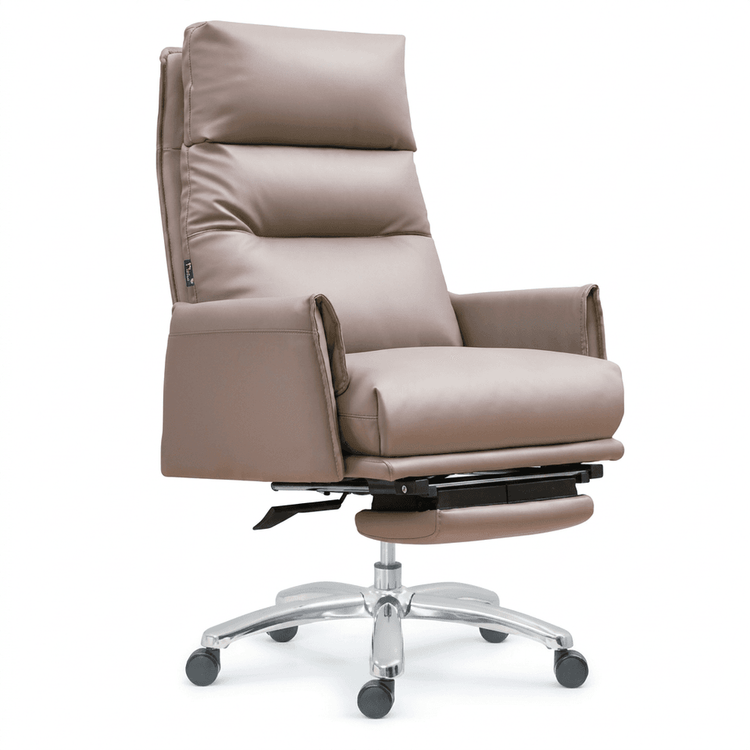
Office Chair Reservation Process
The reservation process for office chairs varies across different scenarios, as detailed below:

Shared Office Scenario: First, the administrator needs to complete basic setup, including registering a unit account, creating shared rooms, and configuring detailed shared seat information in the management backend, such as row and column positions, layout diagrams, and reservation time limits. When making a reservation, users need to enter the "Qichen Smart Reservation" mini-program, click [Submit Reservation], select the shared office, and fill in the reservation time. The system will then display the seat availability status for each time slot (blue for available, gray for occupied or unavailable). After selecting an available seat and submitting the reservation, users will receive a notification via WeChat or SMS containing a temporary password for the smart door lock. The password becomes valid 30 minutes before the reservation starts, allowing users to open the door and use the seat.
School Youth League Committee Table and Chair Borrowing Scenario: Borrowers need to complete an online reservation application through the mini-program, including logging in, filling in personal information, selecting the type and quantity of tables and chairs, and submitting for approval. Both borrowing and returning offline require on-site registration of information and signing. If table 1 is already occupied, the system will automatically extend to table 2 and subsequent numbers, but the quantity borrowed must not exceed the available stock, and reservations must be made at least 6 hours in advance. Temporary applications are not accepted during winter and summer vacations; activities must be planned in advance. If the collection or return date needs to be changed, prior communication with the School Youth League Committee is required. The borrowing unit is responsible for transporting the tables and chairs themselves, and each item has a unique number that must match upon collection and return.
All-in-One Silent Pod (Including Office Chairs) Scenario:
- Mobile: Access the "Teaching Silent Pod Reservation System" through the DingTalk workbench, fill in the required information, and submit for approval.
- Computer: Log in to the Wenzhou Medical University homepage, enter the "My WMU" comprehensive portal, find the "Teaching Live Silent Pod Reservation System" through the search or information service module, fill in the information, and submit for approval. After approval, users can open the door by face recognition or using a mobile QR code during the reserved time slot. The QR code can be obtained by viewing the approval record in the "Application Management" interface on the DingTalk workbench and scanning the code to open the door.
The reservation processes for different scenarios are designed around resource management, user permissions, and operational convenience. Users should select the appropriate process based on specific needs and strictly adhere to the rules to ensure rational utilization of resources.