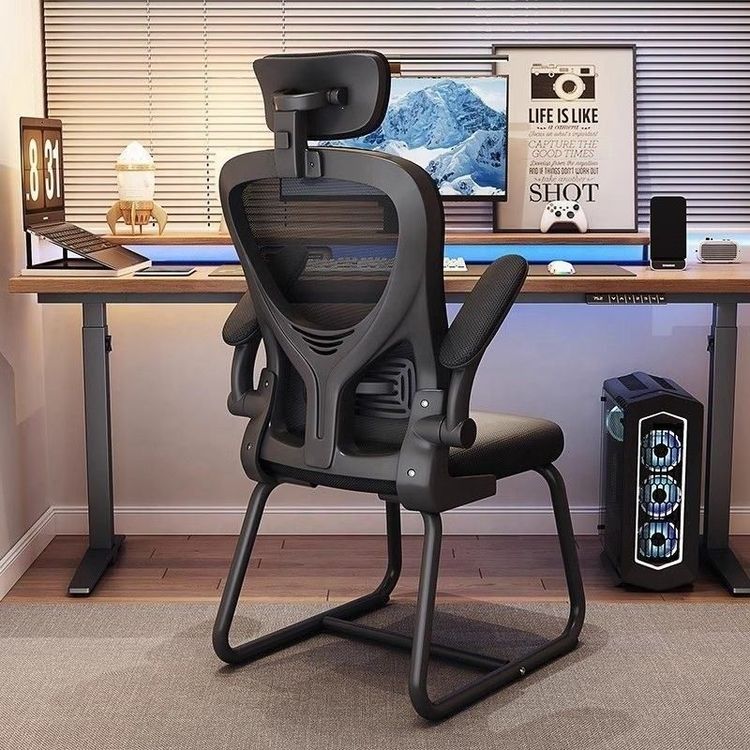
Drawing an Office Chair in AutoCAD
Drawing an office chair in AutoCAD can be achieved through 2D or 3D modeling, with the specific methods outlined below:

Steps for 2D Plan Drawing
Basic Outline Drawing
Use the [Line] command to draw the initial outline of the chair, determining the basic framework of the seat and backrest. For example, first draw the four side lines of the seat, and then extend straight lines to form the vertical support structure of the backrest.Detail Refinement
- Use the [Copy] command to add vertical straight lines, forming the vertical support bars of the chair back.
- Use the [Three-Point Arc] command to draw the curved outline of the chair back, ensuring it conforms to ergonomic curves.
- Use the [Mirror] command to complete symmetrical structures, such as the symmetrical design of armrests or chair legs on both sides.
Array Application
If multiple chairs need to be drawn (e.g., for a conference setting), the [Array] command can be used. With the center of the dining table as the center point, set the parameters for a circular array to quickly generate a uniformly distributed chair layout.Dimensioning
According to common size references, mark the seat height as 400-450mm and the seat dimensions as 450×450mm to ensure the design meets actual usage requirements.
Steps for 3D Modeling
Seat Cushion Creation
Draw a square in the top view as the base of the seat cushion, and use the [Fillet] command to process the four boundaries and the upper boundary, making it more in line with the rounded feel of a real seat cushion.Support Structure
Draw a closed profile (such as a circle or rectangle) in the front view, define it as a surface, and then use the [Revolve Solid] command to generate a support column, simulating the three-dimensional structure of chair legs or a central column.Brackets and Wheels
- Draw a closed bracket shape (such as a five-pointed star), define it as a surface, and then extrude it to a specified height to form the chair foot bracket.
- Draw the wheel shape and extrude it, using the [Fillet] command to optimize the boundaries, making it closer to the appearance of a real wheel.
Component Integration
- Use the [Circular Array] command to arrange the brackets, ensuring the wheels are evenly distributed.
- Copy and rotate the square to form the curve of the backrest, adjusting the angle to fit the human back.
- Finally, use the [Union] operation to merge all 3D shapes and complete the overall modeling.
Operation Tips
- When drawing in 2D, the [Offset] command can be used to generate the thickness of the tabletop or decorative side lines, enhancing detail representation.
- In 3D modeling, switch to the [3D View] - [SW Isometric] mode to facilitate observation of the three-dimensional structure.
The above methods can be chosen based on actual needs, either through a 2D or 3D path, and combined with basic commands (such as Rectangle, Fillet, Array) to complete the drawing of an office chair.