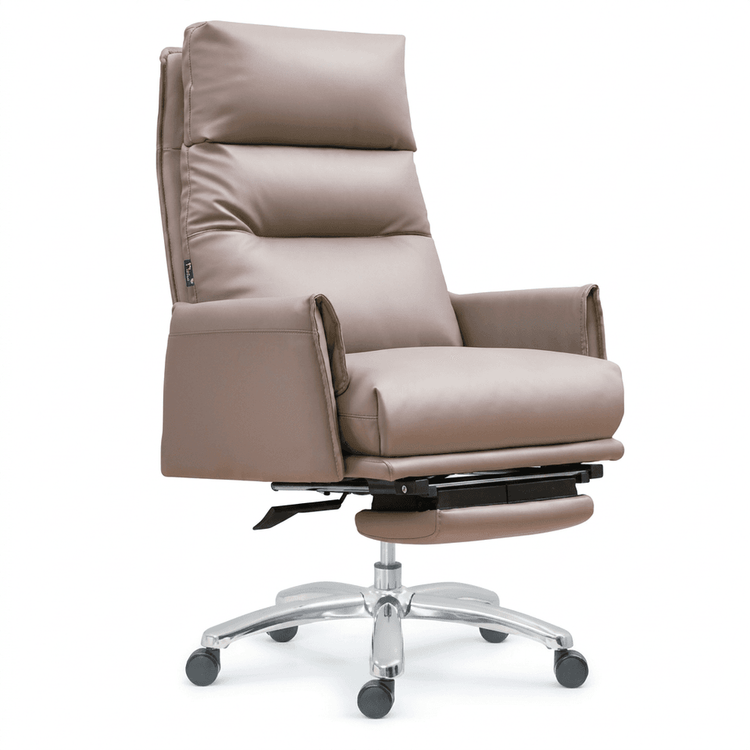
SW Office Chair Modeling
SolidWorks (SW) office chair modeling can be completed step-by-step by referring to similar cases and combining the structural characteristics of office chairs, but adjustments need to be made according to actual needs. Although the search results do not directly provide a complete tutorial, modeling cases such as 'ergonomic chairs' and 'solid wood chairs' can offer methodological references. The following is a general modeling approach:

1. Preliminary Preparation and Structural Analysis
An office chair typically consists of components such as a backrest, seat cushion, armrests, a five-star base, a gas lift, and wheels. Before modeling, it is necessary to clarify the dimensions, shapes, and connection methods of each part, such as the curvature of the backrest, the thickness of the seat cushion, and the branch angle of the five-star base. Actual office chair products or design drawings can be referenced to determine the overall proportions and key parameters, avoiding frequent modifications later.
2. Basic Modeling Steps
Creating the Backrest and Seat Cushion
- Use the 'Extruded Boss/Base' command to draw the outline sketches of the backrest and seat cushion, designing the curvature according to ergonomic principles, such as an S-shaped backrest that conforms to the spinal curve.
- Generate surfaces using the 'Lofted Boss/Base' or 'Sweep' command. For more refined surfaces, combine the 'Boundary Surface' or 'Filled Surface' commands for optimization.
- Add 'Fillet' features to the edges to enhance comfort and aesthetics.
Constructing the Armrests and Connection Structures
- The armrests can be modeled separately and then assembled with the backrest or seat cushion. Use the 'Extrude' command to draw the main body of the armrests, and then use the 'Extruded Cut' command to add adjustment holes or grooves.
- The connection parts need to consider mechanical structures, such as hinges between the backrest and seat cushion, and the fixing methods between the armrests and backrest. The 'Mate' command can be used to simulate assembly relationships.
Designing the Five-Star Base and Wheels
- The five-star base is usually a symmetrical structure. First, draw the sketch of one branch, use the 'Revolve' or 'Extrude' command to generate the solid, and then use the 'Pattern' command to replicate the remaining branches.
- When modeling the wheels, pay attention to the layered design of the wheel hub and tire. Use the 'Revolve' command to generate the wheel hub, and then use the 'Extrude' or 'Sweep' command to add the tire. Finally, use the 'Assembly' function to connect the wheels to the five-star base.
3. Detail Optimization and Rendering
Adding Materials and Textures
- Assign materials to each part, such as fabric or leather for the backrest and seat cushion, and metal or plastic for the five-star base and wheels.
- Adjust parameters such as color and glossiness using the 'Appearance' tool to enhance the realism of the model.
Checking and Modifying
- Use the 'Interference Detection' tool to ensure that there are no collisions between parts, such as the connection between the backrest and seat cushion, and the assembly relationship between the wheels and five-star base.
- Adjust dimensions or structures according to the inspection results, such as optimizing the tilt angle of the backrest or the depth of the seat cushion.
4. Adaptive Adjustments Based on Reference Cases
The 'ergonomic chair' case may focus more on ergonomic design, and its modeling methods for the backrest and seat cushion can be referenced; the 'solid wood chair' case can provide references for structural connection methods, such as mortise-and-tenon joints or screw fixings. However, it should be noted that office chairs usually contain more mechanical components (such as gas lifts and adjustment mechanisms), and additional modeling steps need to be supplemented accordingly.