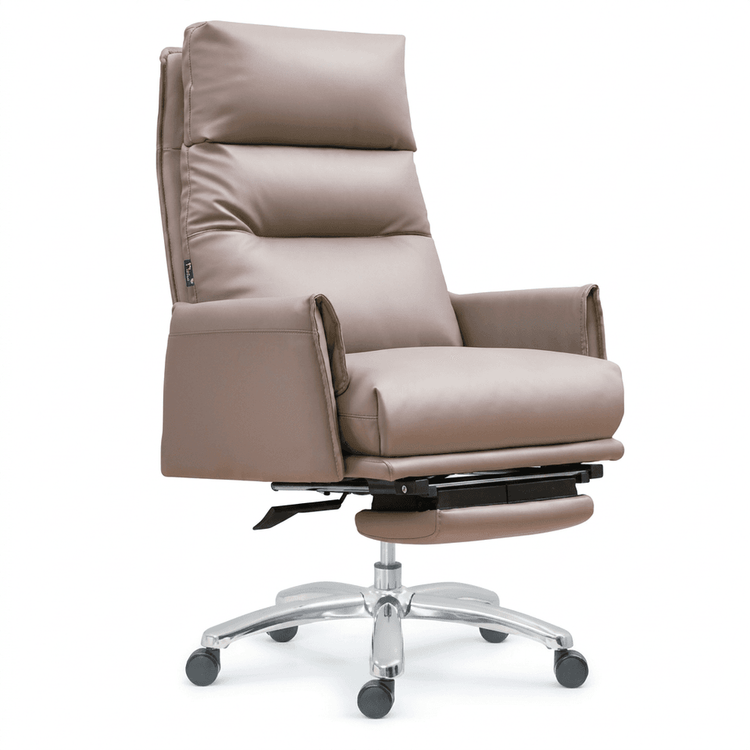
SolidWorks Curved Surface Office Chair
To create a curved-surface office chair in SolidWorks, follow these modeling steps:

Metal Frame Modeling
First, draw the metal frame part of the chair. Start by creating a 3D sketch as the path, which should be drawn according to the actual direction and curvature of the office chair frame to accurately represent its shape. Then, draw a 2D sketch as the cross-section, with the shape designed based on the frame's cross-section, such as the common circular or square shapes. After completing the sketch drawings, use the sweep function to perform a sweep operation with the 3D sketch as the path and the 2D sketch as the cross-section, thus completing the modeling of half of the chair's frame. Add cylindrical structures at the ends of the frame by using the extrude command, drawing a circular sketch on the end face of the frame as the reference plane and extruding it into a cylinder. For the middle connecting rods, also use the extrude command to draw sketches at appropriate positions and extrude them to the required lengths. After completing half of the frame and its附属 structures (accessory structures), use the mirror function, select an appropriate mirror plane, and mirror the completed frame part to obtain the complete metal frame of the chair.
Seat and Backrest Modeling
The seat and backrest are modeled using surface modeling methods. First, create four sketch lines, which can be arc lines or spline curves, drawn according to the actual contours of the office chair's seat and backrest to accurately outline their shapes. Then, use the loft function to perform a loft operation on these four sketch lines, completing the modeling of half of the seat or backrest surface. Next, use the mirror function, select an appropriate mirror plane, and mirror the completed surface to obtain the complete seat or backrest surface. After that, use the thicken function to add a certain thickness to the surface, giving it solid characteristics. Finally, add fillets by using the fillet command to round the edges of the seat and backrest, making them more in line with the appearance and comfort requirements of actual products.
Other Accessory Modeling
Add accessories such as chair legs and armrests. For the chair legs, draw sketches according to the design requirements and use commands such as extrude and revolve for modeling. For the armrests, also draw sketches first and then create solids through methods such as extrusion and revolution. For special parts of the seat, such as the red part, first copy the surface of the seat, then use the thicken function to thicken it to the required thickness, and then add detailed features. For example, use the extrude cut command for the dents on it and the fillet command for the fillets.
In addition, you can also refer to the 'SolidWorks Surface Modeling Video Tutorial - Office Chair.mp4' for further learning of modeling techniques and detail processing.