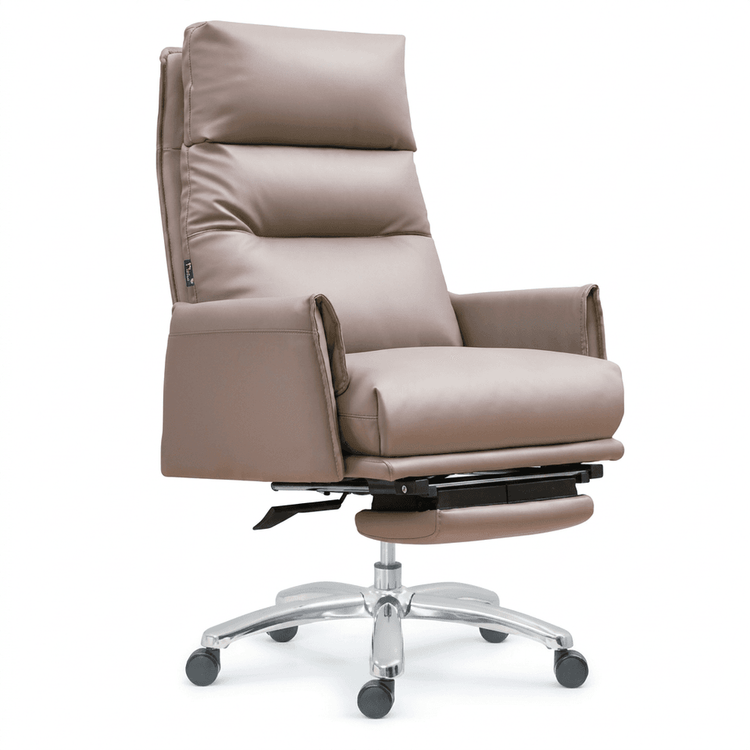
Drawing an Office Chair with SolidWorks
Drawing an office chair using SolidWorks can be achieved through various methods. Below are two typical modeling approaches and their key operational points:

Method 1: Modeling Process Based on Sweep and Extrude
Leg and Bracket Components
The legs of an office chair typically adopt cylindrical or prismatic structures and can be directly generated using the Extrude Boss command. First, draw a cross-sectional sketch of the leg (such as a circle or rectangle) on the front reference plane, and then set the extrusion height parameter to complete the basic shape. For complex cross-sections (such as I-shaped brackets), you can first draw a polyline sketch and then generate the solid using the Extrude Boss or Loft Boss commands.
The Sweep Tool is suitable for designing legs with gradually changing cross-sections. For example, if the leg tapers from the bottom to the top, you can first draw a centerline as the sweep path and then draw a cross-sectional sketch (such as a circle). Use the Sweep Feature command to generate a gradually changing solid along the path.Wooden Board Components (such as Seat and Backrest)
First, establish two parallel reference planes (such as the 'Top Surface of the Seat' and the 'Bottom Surface of the Seat'), draw the outline sketches of the wooden board on these reference planes, and generate the solid using the Extrude Boss command. If the wooden board has varying thickness, you can set the 'Bidirectional Extrusion' or 'Up to Surface/Reference Plane' options during extrusion to ensure the thickness meets the design requirements.
Method 2: Modeling Process Combining Surface and Solid Modeling
Seat Cushion Surface Modeling
The seat cushion usually has a curved surface structure. First, draw four boundary sketches (the outline lines in the front, rear, left, and right views) and generate the basic surface using the Boundary Surface command. If the seat cushion has a curvature, you can add spline curves or arcs to the sketches to ensure a smooth transition of the surface.
After generating the surface, use the Thicken command to convert it into a solid, set the thickness parameter (such as 0.4mm), and select the 'Symmetric' distribution option. Then, create sketches in the front and top views, use the Extrude Cut command to create holes (such as ventilation holes or mounting holes) on the seat cushion, and finally use the Fillet command to chamfer the edges.Overall Assembly and Mating
After completing the modeling of all parts, you need to combine them in the Assembly environment. Use mating relationships such as Coincident, Concentric, and Distance to fix the positions of the parts (such as the connection between the legs and the seat, and the rotational mating between the backrest and the bracket). If you need to simulate the movement of the chair (such as adjusting the angle of the backrest), you can add Mechanical Mates (such as hinge mates) and set the angle range.
Key Considerations:
- Clearly define the design parameters (such as dimensions and material thickness) before modeling to avoid later modifications.
- For complex surfaces, it is recommended to generate them step by step. First, create the main surface and then refine the details through trimming and stitching operations.
- When assembling, prioritize fixing the base part (such as the seat) and then gradually add other parts to reduce mating errors.