Back to blog
Article
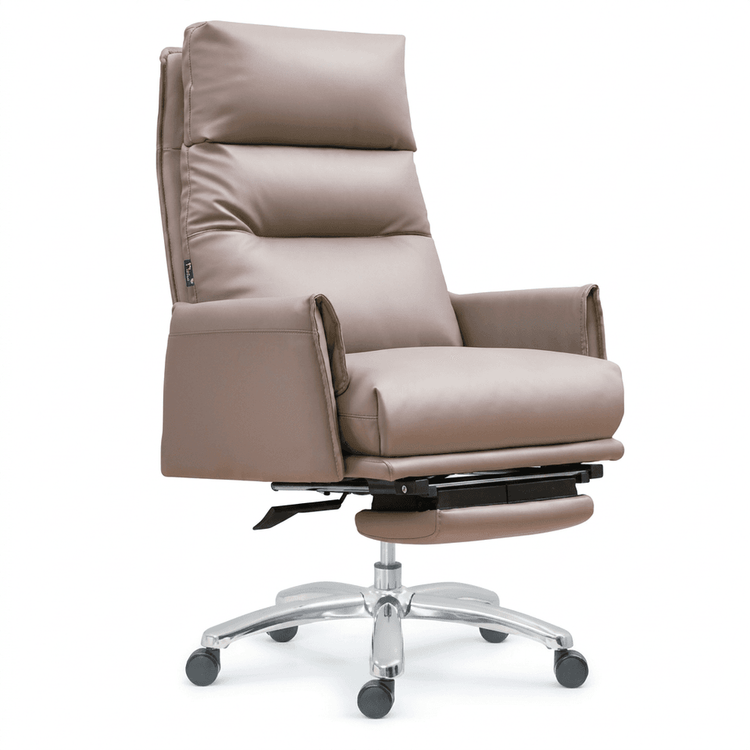
PS Office Chair Color Adjustment
Admin October 14, 2026
In Photoshop, adjusting the color of an office chair can be achieved through the following three methods, and the specific operation should be selected according to the characteristics of the image:

1. Quick Selection Tool + Hue/Saturation Adjustment (Suitable for images with a clean background and distinct outlines)
- Create a selection: Use the Quick Selection Tool (shortcut key W), adjust the brush size, and then涂抹 (this word should be translated as 'paint' or 'drag' in this context, but for the sake of step description, we keep the original action description and translate the rest) along the edge of the office chair. Hold down the Alt key to deselect unwanted areas. If there are jagged edges or fringes, click 'Select and Mask' at the top menu bar and optimize the edge transition by adjusting the smoothness (usually 5-10) and feathering value (1-2 pixels).
- Add an adjustment layer: Click the 'Hue/Saturation' icon at the bottom of the Layers panel to create an adjustment layer. Drag the 'Hue' slider to change the overall color (e.g., from blue to red), adjust the 'Saturation' to control the color purity, and use the 'Brightness' slider to adjust the brightness. For local corrections, use a mask with a black brush to erase areas that do not need color adjustment.
2. Magic Wand Tool + Replace Color Function (Suitable for office chairs with a solid color and a large color difference from the background)
- Create a selection: Select the Magic Wand Tool (shortcut key W), set the tolerance value in the options bar (use 20-32 for clear edges and 5-15 for fine transitions), and click on the color area of the office chair to automatically select it. If the selection is incomplete, hold down the Shift key to add to the selection or use 'Select Similar' to expand the range.
- Replace the color: Go to the menu bar and select 'Image - Adjustments - Replace Color'. In the dialog box, use the eyedropper tool to pick the target color, adjust the 'Color Tolerance' to control the selection accuracy, and drag the 'Hue', 'Saturation', and 'Brightness' sliders to achieve precise color adjustment. This method is suitable for quickly modifying a single color block, but note that the color difference between the background and the subject should be large enough.
3. Layer Blending Modes and Masks (Suitable for images with complex edges or when texture needs to be retained)
- Path tracing: Duplicate the background layer (Ctrl+J), use the Pen Tool (shortcut key P) to draw a path along the edge of the office chair, right-click to select 'Make Selection', and then fill it with a solid color (e.g., gray).
- Blending mode adjustment: Change the blending mode of the filled layer to 'Soft Light' and adjust the opacity (usually 30%-70%) to make the color blend naturally with the original image. Add a layer mask, use a black brush to erase the overflowing parts, or use a white brush to restore the areas that need color adjustment.
- Detail optimization: Use the Clone Stamp Tool (Alt to sample) to repair local flaws. The Smudge Tool (intensity 10%-20%) and the Blur Tool (radius 1-2 pixels) can soften the edge transitions and avoid harsh color blocks.
Operation suggestions:
- Always duplicate the background layer (Ctrl+J) before making adjustments to avoid damaging the original data.
- Observe the edge details through the 'Select and Mask' view modes (e.g., black background/white background) to ensure an accurate selection.
- For complex images, combine multiple methods. For example, first use the Quick Selection Tool to create a basic selection and then refine the edges with a mask.