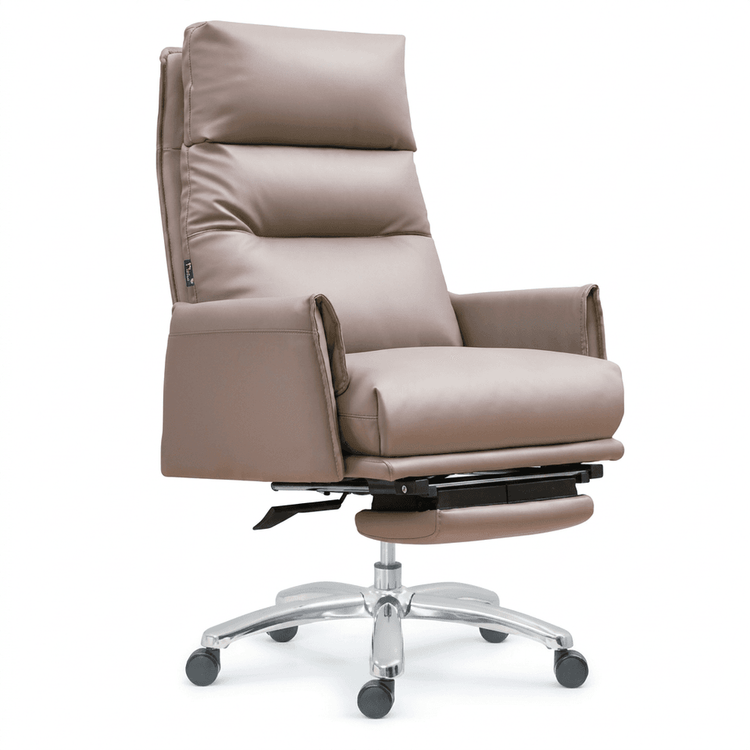
PPT Office Chair Cover
For PPT office chair cover design, consider the following directions that combine practicality with visual appeal:

1. Vector Hand-drawn Style Cover
Vector hand-drawn elements convey simplicity and professionalism, suitable for business or educational PPTs. Choose monochromatic or low-saturation vector images of simple office chairs or backrest chairs as the core visual, paired with solid or gradient backgrounds (such as light gray, off-white, or light blue). To enhance the design sense, add thin line decorations below the title or use geometric shapes (such as rectangles or circles) to divide the image and highlight the hierarchy.
2. Modern Office Scene Photography
Using a real office environment as the background can enhance immersion. Recommended are photographs of modern office spaces, such as open office areas, conference rooms, or individual workstations equipped with green office chairs. Key Tips: Choose images with a simple background and uniform lighting to avoid overly cluttered elements; if the main subject of the image is not prominent enough, cover part of the background with a semi-transparent color block (such as dark blue or black) and overlay white title text to enhance readability.
3. 3D Rendered Tech-inspired Cover
If the PPT theme leans towards technology, innovation, or a futuristic feel, a 3D rendered front view of a black office chair is an ideal choice. Such illustrations typically feature clean lines and a three-dimensional feel, paired with a dark gradient background (such as dark gray to black) or tech lines (such as blue light effects or grid patterns) to reinforce the atmosphere. Design Suggestions: Place the 3D office chair in the center of the image, use a sans-serif font (such as Arial or Source Han Sans) for the title, and add a slight shadow or glow effect to contrast with the background.
4. Flat Illustration Style Cover
Hand-drawn cartoon flat-style office chair cut-out elements are suitable for lighthearted or creative themes. Choose flat chair icons filled with a single color or two colors, paired with abstract backgrounds (such as color block拼接s or low-polygon patterns). Combination Method: Enlarge the office chair icon and place it on one side of the image, balance the image with a contrasting color block (such as yellow and blue, pink and green) on the other side, and arrange the title text along the edge of the color block to add dynamism.
5. Recombination of Comprehensive Template Elements
Some furniture-themed PPT templates include office chair icons or scene images (such as modern laboratory or corporate scene backgrounds), which can be directly extracted and recombined for the cover. For example, extract an office chair icon from the template, pair it with a custom background (such as solid color, gradient, or light texture), and add a title and subtitle. Precautions: When recombining, ensure a unified color tone and style to avoid element conflicts.
Quick Production Tips:
- Basic Structure: Use a rectangular color block (such as light gray or white) as the title base, overlay an office chair vector image or photograph, and add a gradient or tech line background.
- Font Selection: For titles, recommend using bold sans-serif fonts (such as Heiti or Source Han Sans Bold), and for body text, use regular fonts with clear hierarchy in font size.
- Color Scheme: For business PPTs, use neutral colors (gray, white, black) as the main colors, paired with a small amount of brand colors; for tech PPTs, use cool tones such as blue, purple, and silver; for creative PPTs, try contrasting color combinations (such as orange and blue).