Back to blog
Article
Office Chair PS Assignment
Admin October 16, 2026
Completing an office chair-related assignment using PS can be achieved through four methods: drawing, sketch effect creation, simple sketch drawing, or detailed retouching and scene composition. The specific operations are as follows:

1. Drawing a Backrest Chair
- Basic Structure Construction: Create a new white canvas. Use the Ellipse Tool to draw the seat and the Line or Rectangle Tool to draw the legs. Note that the length of the legs should be 1.5-2 times the diameter of the seat to ensure a harmonious proportion.
- Detail Addition and Adjustment: Draw the backrest support rods with the Line Tool and add the backrest panel with the Rectangle Tool. Set the color (e.g., dark brown for the seat, black for the metal rods) and shadow (angle 120°, distance 5 pixels) in the layer style to enhance the three-dimensional effect.
- Optimization Processing: Use 'Filter - Noise - Add Noise' (amount 2%) to simulate material texture, or adjust the light and shadow transition through 'Layer Blend Mode - Multiply'.
2. Sketch Effect Creation for an Office Chair
- Basic Processing: After opening the original image, press 'Ctrl+Shift+U' to desaturate it, then press 'Ctrl+I' to invert it. Change the layer blend mode to 'Color Dodge'.
- Line Generation: Apply 'Filter - Other - Minimum' (radius 1 pixel) to form clear lines along the image edges. If the lines are too thick, reduce the layer opacity to 70%.
- Effect Enhancement: Duplicate the layer and overlay 'Gaussian Blur' (radius 0.5 pixels), with the blend mode set to 'Overlay', to enhance the sketch texture.
3. Simple Sketch Drawing of a Chair
- Outline Drawing: Use the Pen Tool to draw a path along the chair's edges, right-click to select 'Stroke Path' (brush size 2 pixels, color black) to generate simple lines.
- Detail Supplementation: Use the Ellipse Marquee Tool to draw the chair wheels and the Rounded Rectangle Tool to add armrests. Increase the sense of hierarchy through 'Layer Style - Drop Shadow' (distance 3 pixels, spread 5%).
- Opacity Adjustment: Set the opacity of the seat layer to 80% to simulate a semi-transparent effect, making the image lighter.
4. Detailed Retouching and Scene Composition of an Office Chair
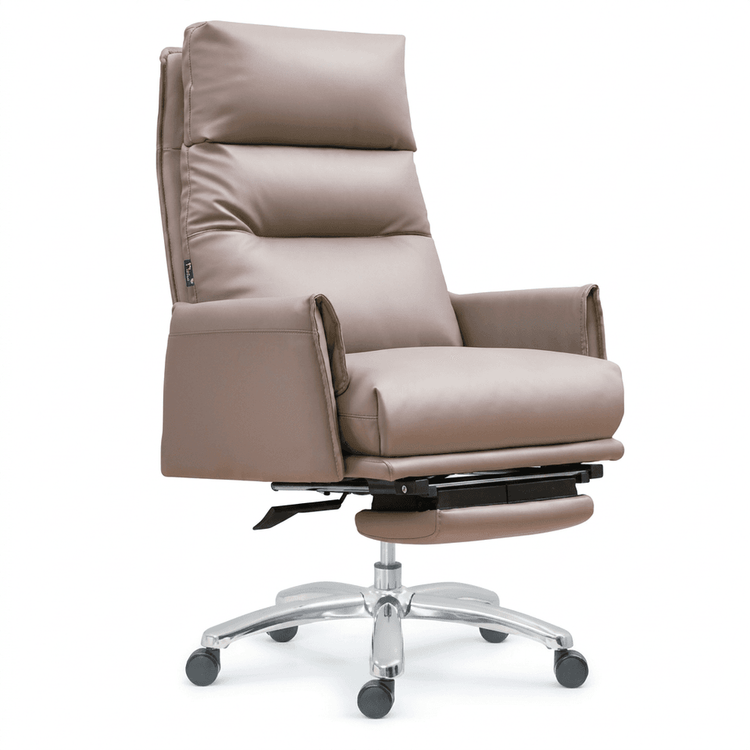
- Cutout and Color Adjustment: Use the Pen Tool to precisely cut out the chair. Adjust the color temperature (-5) and contrast (+15) in the Camera Raw filter to highlight the metallic luster.
- Material Enhancement: Use the 'Burn Tool' (exposure 10%) to paint the dark parts of the leather section. Add 'Outer Glow' (color white, size 3 pixels) to the metal rods to simulate reflections.
- Scene Composition: Drag the chair into an office background image. Use the 'Brush Tool' (flow 30%) to add a shadow under the chair, with the blend mode set to 'Multiply', to achieve a natural fusion.
Precautions:
- For detailed retouching assignments, distinguish material characteristics (e.g., soft reflections on leather, sharp highlights on metal).
- For simple sketch assignments, simplify the structure but retain the core features of the chair (e.g., wheels, backrest).