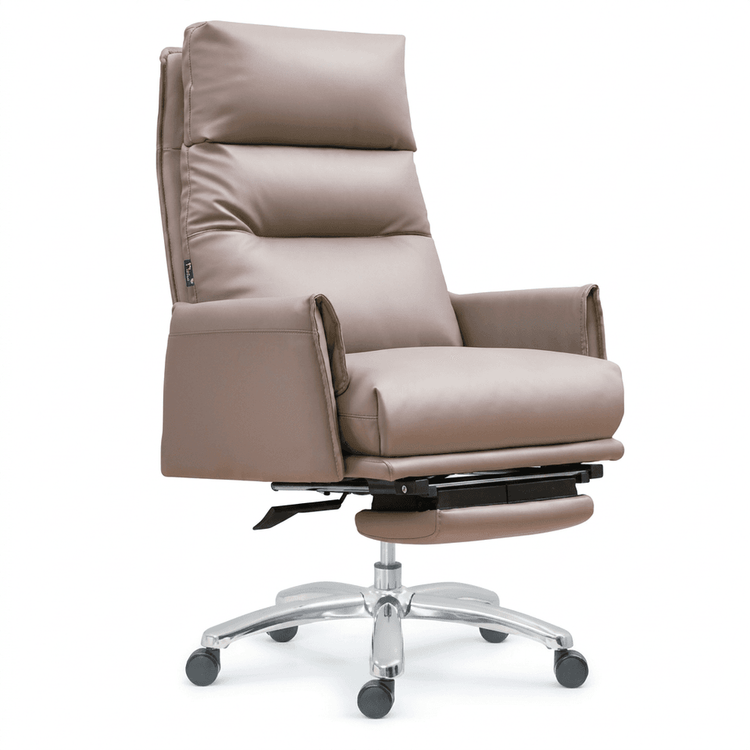
Office Chair Poster Tutorial
There are different methods for creating office chair posters depending on the software used. Here are tutorials for several common software options:

Creating a WIFI Office Scene Poster with C4D (including office chair-related parts):
First, add a [table model] in the content browser and adjust its position. Then create a new [material ball], set the diffuse color to red, and increase the [roughness]. After that, replace the table material with this one. Next, hold down the [Ctrl] key and drag to duplicate the chair, adjust its position, and then add another [table model] and adjust its position. Create another [material ball], set the diffuse color to gray, increase the roughness and index, and replace the corresponding material ball. Then create a [cube], adjust its size, and duplicate the chair and computer, adjusting their positions. You can also add, adjust, and replace materials for other models such as cylinders, sofas, and pool tables to complete the poster scene setup.
Creating an Office Chair Banner with Fanke Kuitu Online:
Step 1: Click on [Login/Register] in the top right corner of the page and log in using [WeChat QR Code Scan] or [Account Password] to start creating. After logging in successfully, select [Work Type] in the top left corner. There are design options for office chair banners for both PC and mobile terminals. Then click on [+] to upload an image. Next, fill in the copy for the banner. The initial copy will be automatically generated and can be modified a second time. After completing the settings, click on the [AI Smart Generation] button and wait for the AI to design the poster.
Creating a Chair Poster with PS (operations related to the Rectangle Tool):
Use the [Rectangle Tool] to draw a rectangle on the left. Select the nodes with the [Direct Selection Tool] and drag to adjust the shape of the rectangle. Then add a [Gradient Overlay] effect, setting it to a black-to-gray gradient with an [Angle] of 180°. Hold down the [Alt] key and drag to duplicate the rectangle to the right. Press [Ctrl+T], right-click, and select [Horizontal Flip]. Double-click to open the [Layer Style] and change the [Angle] of the gradient overlay to 0°.
Creating a Minimalist Poster with PS (including chair elements):
First, fill a vertical gradient from light gray to white. Drag in the chair material, adjust its position and size, and place it in the center. After completing the background and main subject, add the copy, such as "Mulan Chair", using a classical font. Adjust the size and position and offset it slightly. Drag in the seal, select both the title copy and the seal, press [Ctrl+G] to group them, and align them in the center. Finally, add some other copy, using a centered composition layout to increase the details at the bottom of the image.