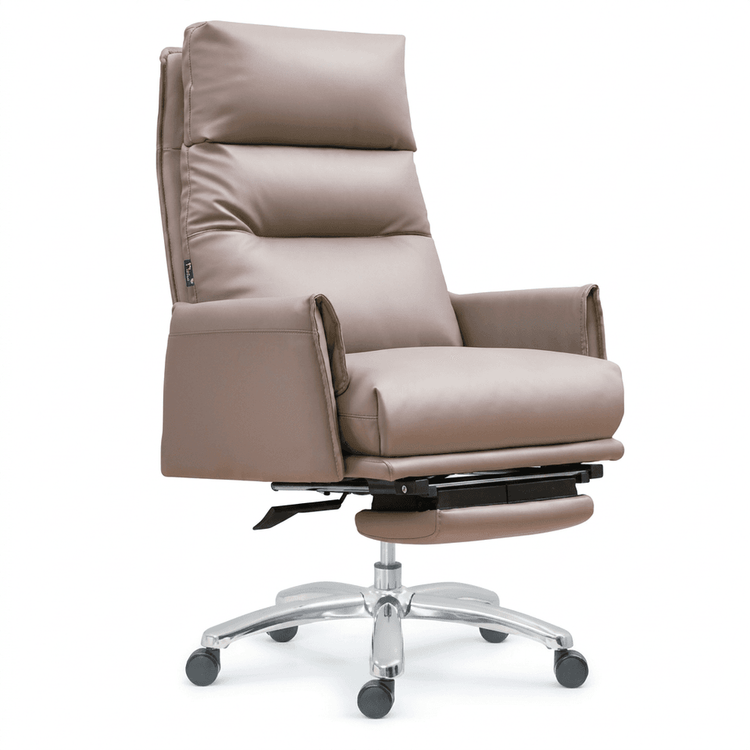
Office Chair Mesh Modeling
Office chair mesh modeling can be achieved through topology design, material mapping, and modifier assistance, with specific operations adjusted according to software features and actual needs.

1. Topology Design Planning
The core of mesh modeling lies in preliminary topology design. In software like 3Ds Max, it is necessary to pre-plan a grid-like layout on the backrest or seat cushion model:
- Basic Model Construction: Use polygon modeling tools (such as Box or Plane) to create basic shapes. Enter the edge/polygon level through 'EditPoly' and manually add horizontal and vertical dividing lines to form a regular grid framework.
- Hole Distribution Control: Adjust the grid density according to design requirements. For example, the central area of the backrest can have denser wiring to support complex mesh structures, while the edges can be simplified to reduce the number of faces.
- Symmetry Handling: If the model requires symmetry, apply the 'Symmetry' modifier to edit only one side of the topology, with the other side automatically synchronized, improving efficiency and ensuring structural consistency.
2. Material Mapping Simulation
The visual effect of the mesh can be quickly achieved through material mapping, especially suitable for distant or low-precision scenes:
- Transparent Channel Mapping: Prepare a mesh texture map with black and white gradients (such as PNG format), where the black part represents transparent areas and the white part represents solid areas. In the material editor, connect the map to the 'Opacity' channel and adjust the transparency threshold to control the display effect of the holes.
- Detail Enhancement: Overlay normal maps (Normal Map) or bump maps (Bump Map) to simulate the physical undulations of the mesh and avoid overly flat materials.
- UV Unwrapping Optimization: Ensure uniform UV distribution on the model to avoid texture stretching causing hole deformation. Use the 'Unwrap UVW' tool to manually adjust the UV of key areas.
3. Modifier Assisted Optimization
Combining modifiers can improve model quality and efficiency:
- Surface Smoothing: Apply the 'TurboSmooth' or 'MeshSmooth' modifier to optimize surface transitions, but retain sufficient subdivision in the mesh area (such as increasing iteration times or manually adding support edges) to prevent hole deformation due to smoothing.
- Boolean Operation Alternatives: If precise hole cutting is required, first use 'ProBoolean' or 'ShapeMerge' for Boolean operations, but this method is prone to generating broken faces and requires subsequent topology repair. It is more recommended to manually create holes using topology tools to maintain model integrity.
- Fabric Simulation Plugins: For complex mesh structures (such as elastic mesh fabric), export the model to Marvelous Designer, generate natural wrinkles and hole distributions through fabric simulation, and then import it back to 3Ds Max for detailed adjustments.
Additional Suggestions: For a complete process reference, search for Pinnacle office chair special tutorials, focusing on details such as side view dimension annotations and symmetry modifier applications, or adjust parameters according to actual project needs.