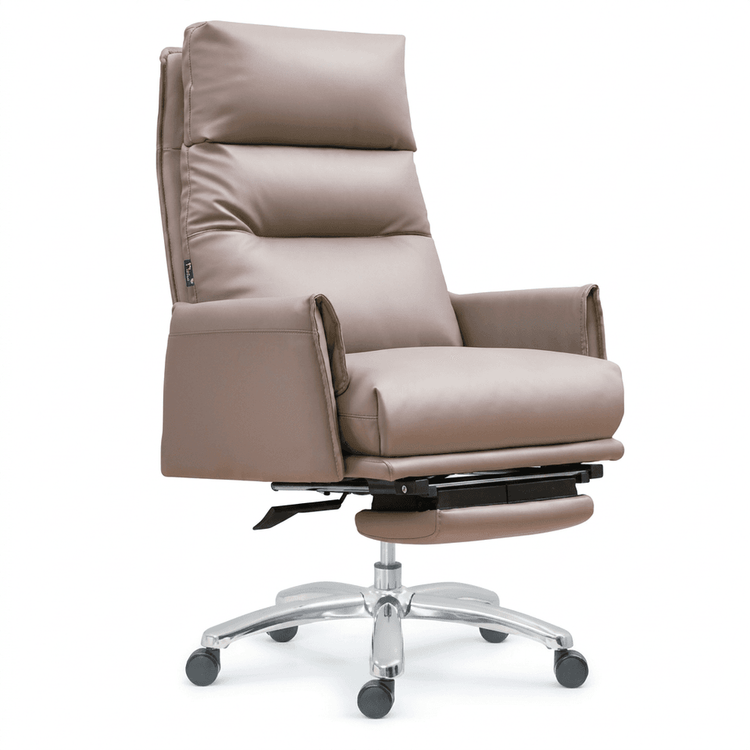
Office Chair Central Axis Modeling
In 3ds Max, the core idea of modeling the central axis of an office chair is to achieve unilateral modeling and real-time mirroring through the 'Symmetry Modifier', combined with component splitting and precise axial control to complete the overall structure.

1. Symmetry Axis Positioning and Basic Settings
The symmetry axis of an office chair is usually centered along the Y-axis (vertical direction) or X-axis (horizontal direction), depending on the main view direction of the model. Before modeling, it is necessary to unify the units to millimeters and import side and front view reference images in the orthographic view to ensure alignment. The choice of symmetry axis directly affects the proportions of the components, for example, the seat cushion and backrest need to be symmetrical along the Y-axis, while the branches of the five-star base may need to be rotationally symmetrical along the X/Z axis.
2. Application Logic of the Symmetry Modifier
- Unilateral Modeling and Real-time Mirroring: Only half of the chair's left or right side needs to be constructed (such as a single armrest or half of the seat cushion), and the other half is generated through the 'Symmetry' modifier in the 'Modifier List'. When modifying vertices, edges, or faces on one side, the other side will automatically update synchronously, avoiding misalignment or loss of instance relationships caused by manual copying.
- Edge Control for Curved Components: For curved components like seat cushions and backrests that require smooth transitions, symmetrical edge constraints (such as edge beveling) need to be reserved on both sides of the symmetry axis to ensure that after applying the 'Turbosmooth' or 'Meshsmooth' modifier, the curvature of both sides is consistent and deformation is avoided.
3. Component Splitting and Symmetry Processing Strategies
- Five-star Base: First, model a single leg (such as converting a cylinder into an editable polygon and adjusting its shape), then use the 'Array' tool to rotate and copy to generate five legs, and finally apply the symmetry modifier to the whole to adjust the position of the central axis, ensuring even distribution of the five legs.
- Seat Cushion and Backrest: Start with a box, add curved details through 'Edge Beveling', and then apply the symmetry modifier. It is important to note the alignment of the symmetry axis with the center of the model, for example, the symmetry axis of the seat cushion should coincide with the overall Y-axis of the chair to avoid local offsets.
- Armrests: After polygon modeling the support arm and armrest surface, use the symmetry modifier to handle the connection. If the armrest has an asymmetrical design (such as a control button on one side), the symmetry modifier needs to be hidden first, complete the details on one side, and then re-enable it.
4. Key Considerations
- Mirror Axis Direction Correction: If the model appears reversed or out of proportion after symmetry, adjust the 'Mirror Axis' (X/Y/Z) or 'Flip' options in the parameters of the 'Symmetry' modifier.
- Instance Relationship Protection: Directly copying an object and then adding 'Editable Poly' will break the instance link, causing the symmetry modifier to fail. It is recommended to always achieve symmetry through modifiers rather than copy-pasting.
- Multi-software Compatibility: Although the wiring logic may differ in software like C4D, the principle of symmetry axis handling remains the same (such as C4D's 'Symmetry' generator), and all need to follow the 'split-mirror-adjust' process.
By following the above methods, you can efficiently complete the central axis modeling of an office chair, balancing symmetry accuracy and detail controllability.