Back to blog
Article
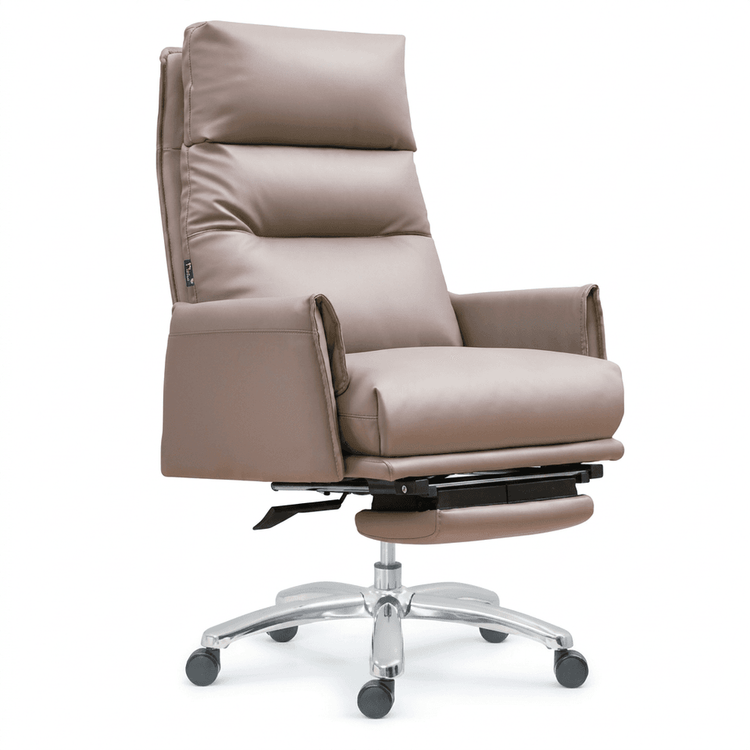
OC Office Chair Rendering
Admin October 11, 2026
High-quality OC office chair rendering can be achieved through specific software and steps, with the key being the coordinated adjustment of materials, lighting, and rendering parameters.

I. Selection of Core Software and Tools
OC (Octane Render), as a GPU-accelerated renderer, needs to be used in conjunction with modeling software. Common combinations include:
- C4D + OC: Suitable for intermediate users, with tutorials covering operations in the R21 version, such as adjusting rendering subdivision parameters, loading texture maps into different channels (diffuse, reflection, roughness, etc.), and creating normal/bump maps to enhance details.
- 3ds Max + OC/VRAY: Used for modeling and rendering office chairs, with a focus on representing leather effects. Control glossiness and texture hierarchy through material nodes, and pair with scenes to create a sense of sophistication.
- Auxiliary Material Resources: Directly use C4D/FBX format office chair models (including texture materials) or抠图 (cut-out) image materials (such as 2000*2000px C4D source files) to quickly build scenes.
II. Analysis of Key Rendering Steps
Material Processing
- Leather Effect: In the OC material editor, load a leather texture map through the 'diffuse channel', adjust the Fresnel properties of the 'reflection channel' to simulate real gloss, and use the 'roughness channel' to control surface fineness.
- Detail Enhancement: Use 'normal maps' to simulate the bumpiness of leather textures and 'bump maps' to further enhance three-dimensional effects, avoiding performance losses caused by excessive model subdivision.
Lighting and Scene Arrangement
- Main Light Source: Use HDRI ambient light or area light to simulate natural lighting, adjusting intensity and angle to avoid overexposure.
- Auxiliary Light: Add point lights or spotlights to highlight the chair's contours, such as side lighting to enhance leather reflections and backlighting to create a sense of hierarchy.
- Scene Matching: Choose a light-colored background or wooden desktop material, and enhance spatial realism through OC's 'ambient occlusion' (AO) channel.
Rendering Parameter Optimization
- Sampling Settings: In Octane Renderer, increase the 'GI Clamp' value to reduce noise and adjust the 'Max Samples' to 1000-2000 to balance quality and speed.
- Output Format: Save as PNG (with transparency channel) or EXR (high dynamic range) for easy post-production color correction and compositing in PS.
III. Common Problems and Solutions
- Slow Rendering Speed: Reduce the number of model faces, use 'proxy objects' to replace complex components; enable OC's 'denoising' function or switch to 'path tracing' mode.
- Unrealistic Materials: Check if the texture resolution is sufficient (recommended 2K or higher), adjust the 'reflection blur' parameter to simulate micro-surface scattering.
- Monotonous Scene: Add small objects such as green plants and books to enrich the composition, or add light and shadow effects through post-production in PS.
By reasonably selecting software, finely adjusting materials and lighting, and optimizing rendering parameters, efficient OC office chair rendering can be achieved to meet commercial display or design needs.