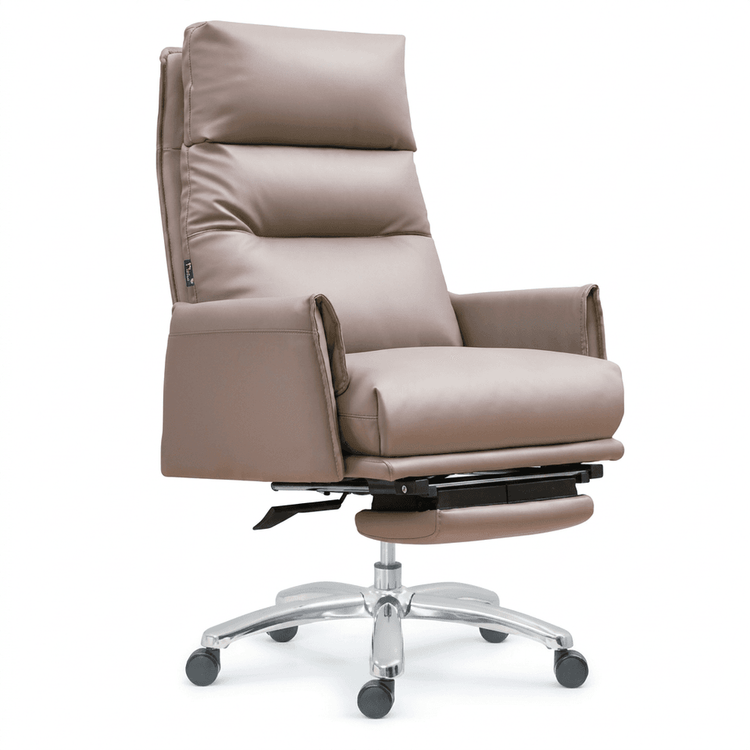
Irregular Office Chair Modeling
The 3D modeling of irregular office chairs can be achieved through 3DMAX software following these steps, with the core processes including cross-section drawing, structural integration, surface generation, and detail optimization:

1. Drawing Cross-Sectional Lines Due to the lack of standard three-view drawings for irregular office chairs, it is necessary to manually draw the cross-sectional contours. It is recommended to start with basic shapes (such as typical cross-sections of the chair back, seat, and armrests) and quickly generate multiple cross-sections by copying adjacent ones and adjusting the vertex positions. It is essential to ensure that all cross-sections have the same number of vertices to ensure the smoothness of subsequent structural lines. For example, the cross-section of the chair back can be gradually adjusted from a rectangle to a curve shape that conforms to ergonomics, while the cross-section of the armrests needs to match the curvature of arm support.
2. Integrating Cross-Sectional Lines and Generating Structural Lines Attach all cross-sectional lines as a single object and convert them to the 'Corner' mode for precise vertex capture. Enter the spline vertex level and use the 'Create Line' function to connect corresponding vertices of each cross-section in order, forming horizontal structural lines. Attention should be paid to the topological logic of structural lines in this step, such as maintaining continuity at the connection between the chair back and the seat to avoid breaks or distortions.
3. Generating Surfaces and Optimizing Details Apply the 'Surface' modifier to create a basic surface, setting the 'Steps' parameter to 0 to avoid interference from redundant structural lines. After converting to an editable polygon, if the model lacks detail (such as stiff surface transitions), add segments between cross-sections or use the 'Connect' command to increase the number of edges. The TurboSmooth modifier is a key tool; by adjusting the number of iterations (usually 1-3 times), you can control the segment density of the model, balancing detail and performance.
4. Adjusting Shape and Curvature Use the 'Move' command and the 'Soft Selection' tool to adjust vertex positions, making the lines more ergonomic. For example, the chair back should exhibit a natural S-shaped curve, while the seat should maintain a slight depression to fit the buttocks. When extending the ends of the model, it is necessary to maintain symmetrical distances, using auxiliary objects (such as dummy objects) as references. Adding a 'Bend' modifier can create an overall curvature (such as the recline angle of the chair back), and applying TurboSmooth again after converting back to a polygon can further optimize the surface quality.
5. Extracting Structural Lines and Supports Extract visible structural lines (such as the chair back frame) from the polygon model and enhance the visual effect by setting the line width (such as 3-5 pixels) through the 'Render' parameters. Simultaneously, extract longitudinal structural lines (such as chair legs and armrest supports) and generate solid supports using the 'Extrude' or 'Sweep' commands to complete the basic modeling.
Learning Suggestions: You can refer to official 3DMAX tutorials or join modeling communities to obtain case resources for irregular furniture, focusing on practicing the combined use of spline editing and modifier techniques.