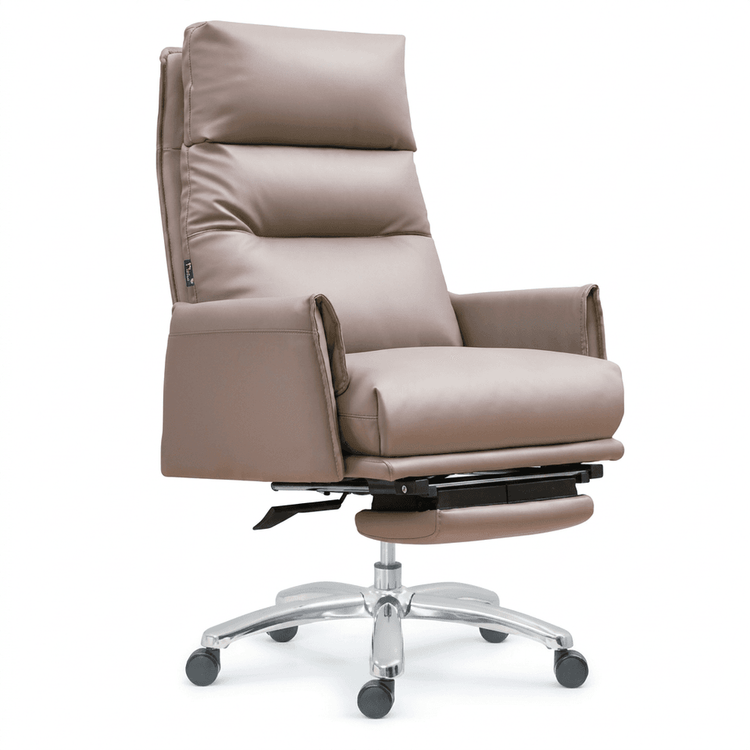
Creo Office Chair Modeling
Creo office chair modeling can be completed step by step using basic commands such as extrusion, mirroring, patterning, and filleting, incorporating modeling ideas from sofa chairs, plastic stools, and conceptual chairs to design key structures. Here are the specific steps and method descriptions:

1. Basic Frame Modeling
The seat, backrest, and support structure of an office chair typically require constructing a basic frame first. You can refer to the modeling method for conceptual chairs and use the Extrude command to draw sketches:
- Draw the seat outline (such as a rectangle or arc) on the sketch plane and generate a solid seat through extrusion;
- The backrest can be extruded separately or generated as a surface conforming to the human body curve using the "Variable Section Sweep" command;
- For the support structure (such as a five-star base), extrude the central column first, then generate the bottom support profile using the "Revolve" command.
2. Detailed Component Design
The armrests, chair legs, and other details of an office chair need to be optimized using commands from plastic stool modeling:
- Armrests: After extruding the basic shape, use the "Fillet" command to process the edges and avoid sharp corners; if the armrests are symmetrical, model one side first and then generate the other side using the "Mirror" command;
- Chair Legs: If they are independent structures, use the "Pattern" command to quickly replicate identical components (such as the five legs of a five-star base); if the chair legs are integrated with the seat, reserve connection structures during extrusion;
- Casters: After extruding the wheel body, use the "Revolve" command to generate the wheel axle, and then position it at the bottom of the chair legs using the "Assembly" function.
3. Surface Optimization and Adjustment
The comfort of an office chair depends on the smoothness of its surfaces, and you can refer to the surface processing methods for sofa chair modeling:
- Use the "Boundary Blend" or "Styling" tool to optimize the transition surfaces between the seat and backrest;
- Adjust the surface thickness using the "Offset" command to ensure structural strength;
- Perform "Fillet" processing on the parts that come into contact with the human body (such as the edges of the seat), with a recommended radius of 3-5mm to enhance comfort.
4. Structural Verification and Modification
After completing the modeling, check the structural rationality:
- Use the "Measure" tool to verify whether key dimensions (such as seat height and backrest inclination angle) comply with ergonomic standards;
- Use the "Interference Check" function to identify collision issues between components;
- If lightweight design is required, use the "Shell" command to shell non-load-bearing parts (such as the hollowed-out areas of the chair back).
Notes:
- Before modeling, clarify the type of office chair (such as a swivel chair or fixed chair), as different types have significant structural differences;
- Modular modeling (such as completing the seat system first and then modeling the support system) can improve efficiency;
- For complex surfaces, it is recommended to construct them step by step to avoid difficulties in modification caused by one-time generation.