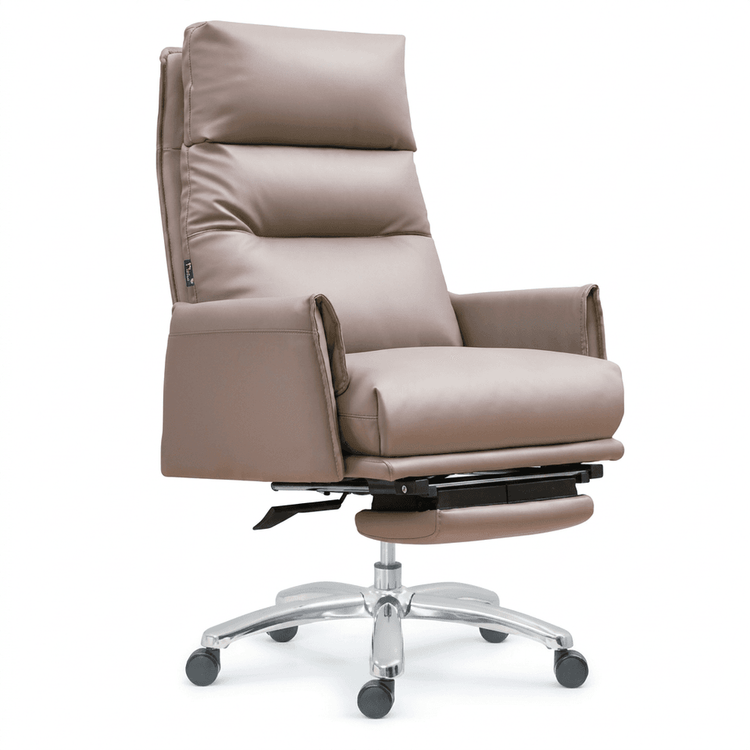
CAD Office Chair Tutorial
The CAD office chair tutorial mainly includes three aspects: three-view drawing, 3D modeling, and the creation of installation instructions.

I. Three-View Drawing of CAD Office Chairs Three-view drawings are the foundation of engineering drawing. They decompose the shape of an office chair into a top view, front view, and left view using orthographic projection. When drawing, first determine the scale and sheet size, then mark the coordinates of key points based on the actual dimensions of the chair. For example, the seat height is typically 400-450mm, and the backrest inclination angle is approximately 100°-110°; these parameters must be accurately reflected in the front view. The top view should display the seat width (usually 450-500mm) and the spacing between the chair legs, while the left view should reflect the thickness of the backrest and the height of the armrests. After drawing, use the 'LAYISO' command to isolate layers and check the correspondence between views to ensure compliance with the national standard for mechanical drawing (GB/T 4457-2002).
II. 3D Modeling of CAD Office Chairs 3D modeling should be completed in steps:
- Base Body Creation: Switch to the [SW Isometric] view and use the 'BOX' command to draw a rectangular prism for the seat (e.g., 500mm long × 450mm wide × 50mm high), then use the 'COPY' command to create base bodies for the chair legs.
- Detail Sculpting: Use the 'FILLET' command to round the edges of the seat (radius 5-10mm), rotate the backrest 105° around the X-axis using the 'ROTATE3D' command to form an inclined surface, and use the 'SUBTRACT' command to excavate mounting holes (diameter 10mm) in the chair legs.
- Material and Rendering: Assign materials to different components using the 'MATERIALEDITOR' command (e.g., fabric for the seat, metal for the frame), and finally use the 'RENDER' command to output a rendering. Note: For mesh modeling, first create a polyline outline, then generate a solid using the 'REVOLVE' or 'EXTRUDE' command, suitable for complex surface designs.
III. Creation of CAD Office Chair Installation Instructions
- 3D Model Decomposition: Use the 'EXPLODE' command to disassemble the complete model into independent components such as the seat, backrest, and chair legs, and adjust their positions and label them with numbers using the 'MOVE' command.
- Exploded View Drawing: Create multiple viewports in layout space to display the decomposed state of components (e.g., the chair legs separated from the seat by 50mm), and add dimension markings and arrows to indicate installation directions.
- Text Instructions: Use the 'MTEXT' command to add step-by-step instructions (e.g., 'Step 1: Insert the chair legs into the positioning holes of the seat'), and include detailed close-up views for key operations.
- Output Format: Save as a DWG file for printing, or export to PDF/JPG format for electronic instructions, with a recommended resolution of no less than 300dpi.
Tip: Frequently use the 'ORBIT' command to rotate the view and observe details during modeling. The installation instructions should include safety warnings (e.g., 'Do not assemble with brute force').