Back to blog
Article
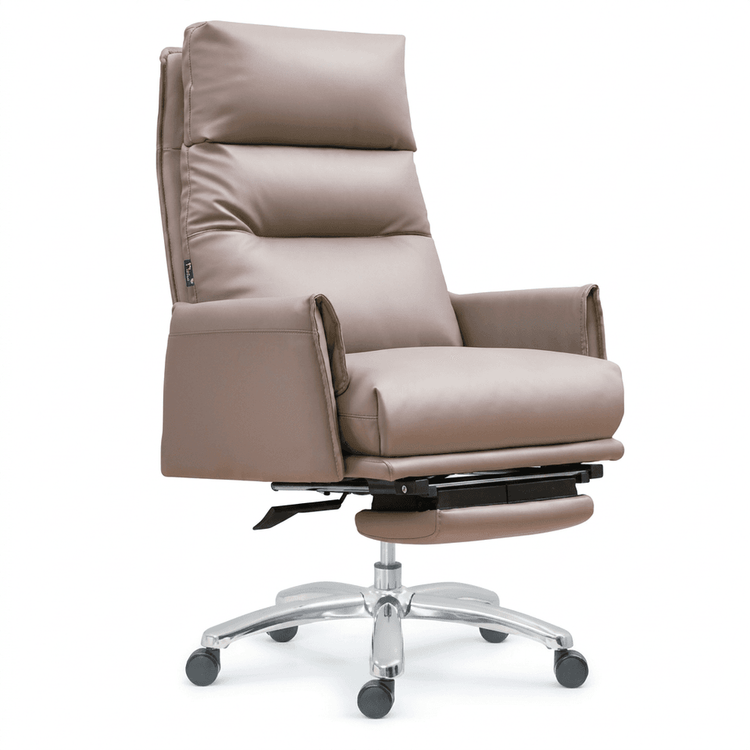
AutoCAD Office Chair Design
Admin October 09, 2026
Drawing an office chair in AutoCAD can be achieved through two main methods: 2D plan drawing or 3D modeling. The specific steps and key points are as follows:

2D Plan Drawing
Basic Framework Construction:
- Use the line command to draw the initial outline of the seat and backrest, forming a rectangular or trapezoidal basic framework. For example, the seat can be drawn with standard dimensions of 450×450mm, and the height of the backrest can be adjusted according to design requirements.
- Supplement the curved outline of the backrest with the arc command, or use spline curves to draw more complex curved shapes. The armrests can be represented by a combination of arcs and straight lines to ensure smooth lines.
Detail Refinement and Array Application:
- Add details such as chair legs and wheels, using the offset command to generate symmetrical structures or the trim command to adjust line intersections.
- If multiple office chairs need to be drawn (e.g., for a conference room scenario), the array command can be utilized. For example, perform a circular array with the center of the dining table as the center point, and input the number of arrays and angles to quickly generate evenly distributed seating layouts.
3D Modeling
Seat Cushion and Support Structure:
- Draw a square in the top view as the base of the seat cushion, and use the fillet command to round the edges, simulating the softness of a real seat cushion.
- Draw a closed profile (e.g., circular or rectangular) of the support column in the front view, and generate a 3D column using the 'Revolve' command. The profile must be completely closed to ensure successful rotation.
Bracket and Wheel Design:
- Draw the 2D profile of the bracket (e.g., a five-claw star shape), define it as a surface, and then use the 'Extrude' command to generate a 3D solid. The height is set according to the length of the chair legs (usually 300-400mm).
- Round the edges of the bracket to avoid sharp corners. For the wheels, draw a circular profile separately, extrude it, and then generate multiple wheels evenly distributed at the end of the chair legs using the 'Polar Array' command.
Backrest and Armrest Integration:
- Draw a square shape for the backrest and use the fillet command to optimize its appearance. The armrests can be created by extruding rectangles of different heights to achieve a sense of hierarchy, such as a front height of 150mm and a rear height of 200mm.
- Move all 3D components to the same coordinate origin and merge them into a single entity using the 'Union' command to ensure a seamless model.
Common Size References
- The recommended seat height for an office chair is 400-450mm to accommodate the natural bend of most users' legs; a seat depth of 450mm provides sufficient support.
- The backrest height is usually 500-600mm to meet the support needs from the waist to the shoulders; the armrest width should be 200-300mm to avoid occupying too much space.
By following the above steps, you can efficiently complete the 2D or 3D design of an office chair in AutoCAD, meeting the requirements for engineering drawing or product display.