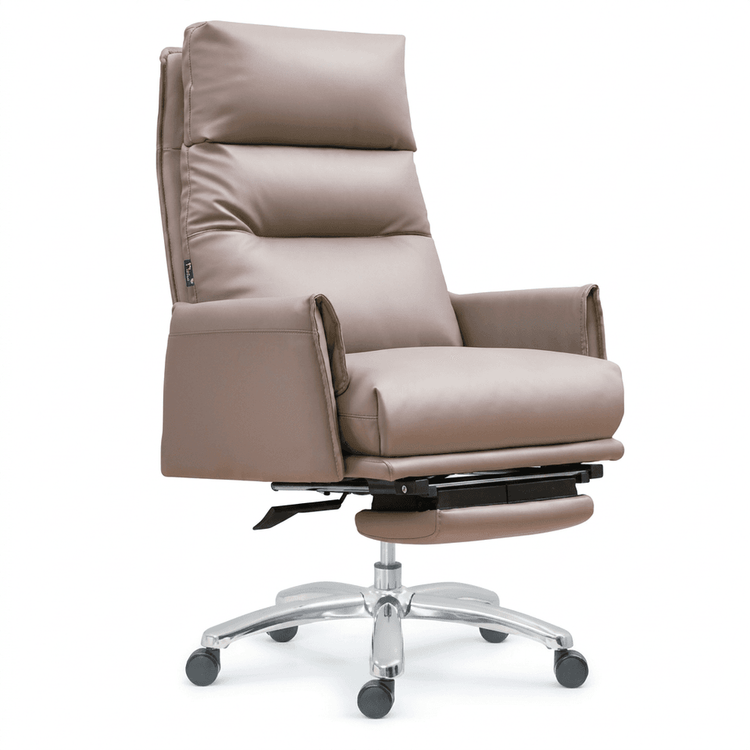
Adjust Office Chair Correctly
To achieve a healthy and comfortable state by adjusting your office chair correctly, refer to the following steps:

Adjust Seat Height Seat height is a key factor affecting sitting comfort. Adjust it so that your feet can rest flat on the ground, with the angle between your thighs and lower legs maintained between 95 and 100 degrees, ensuring even distribution of body weight. If the chair is too high and your feet are left hanging, use a footrest for support. If the chair is too low, your knees will bear extra pressure, potentially leading to joint pain over time. After adjustment, check that your thighs are roughly parallel to the ground to maintain a stable center of gravity and prevent excessive compensation by your waist or shoulder muscles due to shifting weight.
Adjust Seat Depth Seat depth refers to the distance from the front edge of the seat cushion to the backrest. Ensure that the effective support area of the cushion for your thighs reaches two-thirds. If the seat depth is too shallow, the back of your thighs will hang unsupported, impeding blood circulation. If it is too deep, the back of your knees will press against the front edge of the cushion, restricting leg movement. When adjusting, try sitting fully in the chair and then slightly moving your hips forward, leaving a gap of about 2-3 fingers' width between the back of your thighs and the edge of the cushion.
Adjust Sitting Angle The backrest angle should be slightly reclined, ideally between 100 and 110 degrees. This angle effectively disperses lumbar pressure, allowing your back, especially your waist, to fit snugly against the backrest and reducing lumbar fatigue from prolonged sitting. If the backrest angle is too upright (close to 90 degrees), your waist will protrude forward due to lack of support, increasing pressure on the intervertebral discs. If the angle is too large (exceeding 120 degrees), your center of gravity may shift backward, forcing your neck to extend forward to maintain visual balance, leading to cervical spine issues.
Adjust Lumbar Support If your chair is equipped with lumbar support, adjust it to the point of your natural lumbar curve (i.e., the third to fifth vertebrae), so that your waist feels securely supported. If the lumbar support is too low, the support point will shift downward, forcing your waist to protrude excessively. If it is too high, it may press against your ribs, affecting breathing. When adjusting, sit up straight first, feel the emptiest part of your waist, and then slowly move the lumbar support up to that area.
Adjust Armrest Height Armrest height should match the position of your elbows when they hang naturally, ensuring that your forearms can rest easily on the armrests or desktop, with the angle between your upper and lower arms close to 100 degrees. This position relieves shoulder strain and prevents shoulder and neck muscle tension caused by hanging arms. When adjusting, pay attention to the width of the armrests to ensure that your arms can relax naturally and avoid body tilt due to armrests that are too narrow or wide.
Adjust Monitor Height The monitor height should be level with your line of sight, specifically at the top edge of the screen when looking straight ahead. If the monitor is too low, it will force your neck to extend forward, increasing cervical spine pressure. If it is too high, it may cause your head to tilt backward, leading to shoulder and neck soreness. When adjusting, use a monitor stand or books to elevate the screen, ensuring that the center of the screen is at the same horizontal level as your eyes and maintaining a distance of about 50-70 centimeters between the screen and your eyes to reduce visual fatigue.